2.9.7 视频融合
VideoFusion为视频融合对象,其对应现实场景的一路视频流。在使用它之前,务必已经使用Unitor工具软件对相关视频进行了标定工作。如何标定请参见3.1 Unitor用户手册。
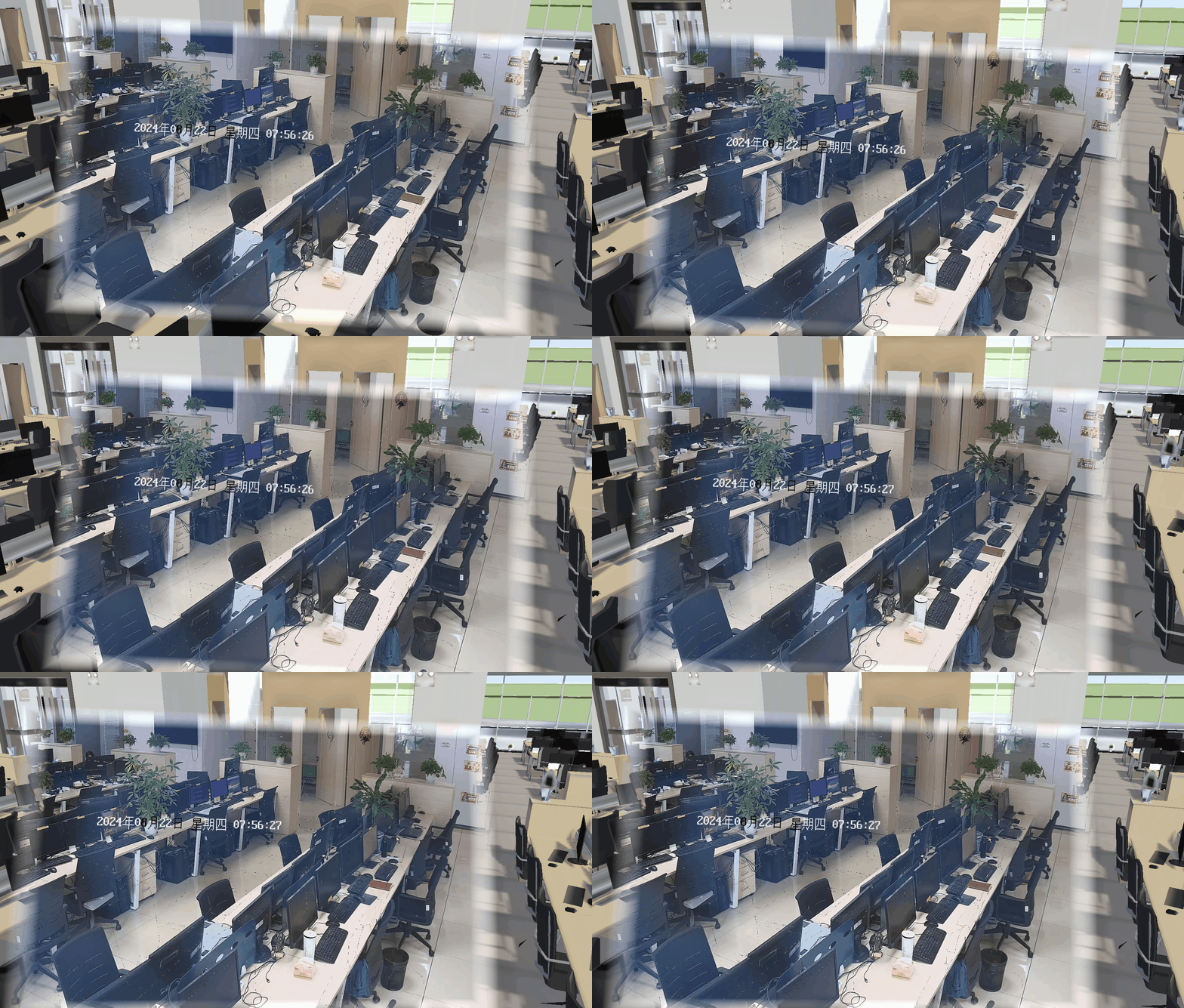
本节将在已经进行标定工作完成的基础上对VideoFusion的使用进行说明。
通常Unitor最终生成的标定文件内容格式如下:
1 120.2193536 30.2100447 36.980 120.2193452 30.2100411 36.543 -0.097 0.952 0.290 45.250 1.787 1.000 8000.000 1970/1/1 8:0:0 rtsp rtsp://admin:xxxxx@xxx.xxx.xxx.xxx:xxx/h264/xxx/main/av_stream name1 Cameraindex=xxxx
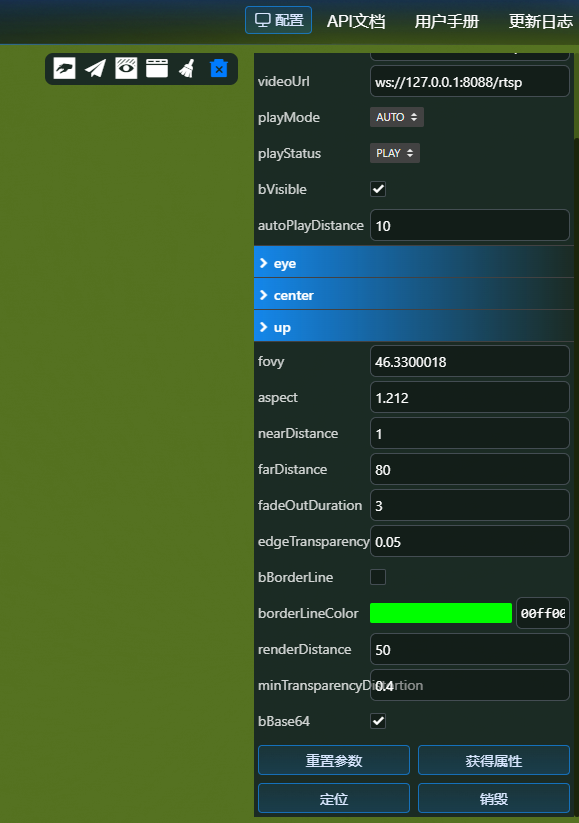
我们需要找到与VideoFusion参数对应的值:

参数说明
| 参数位置 | 参数值 | 说明 |
|---|---|---|
| 1 | 1 | 序号 |
| 2 | 120.2193536 30.2100447 36.980 | eye |
| 3 | 120.2193452 30.2100411 36.543 | center |
| 4 | -0.097 0.952 0.290 | up |
| 5 | 45.250 | fovy |
| 6 | 1.787 | aspect |
| 7 | 1.000 | nearDistance |
| 8 | 8000.000 | farDistance |
| 9 | 1970/1/1 8:0:0 | 时间戳 |
| 10 | rtsp | 协议 |
| 11 | rtsp://admin:xxxxx@xxx.xxx.xxx.xxx:xxx/h264/xxx/main/av_stream | videoUrl |
| 12 | name1 | 名称 |
| 13 | Cameraindex=xxxx | 摄像机索引 |
通信协议
由于浏览器不能直接支持部分格式相关视频流的解码,因此需要一个websocket中转服务去取视频流进行转发,再由内置模块解码。websocket服务可使用我司提供的配套服务,也可使用自己开发的服务。
目前仅支持ws协议,wss协议暂不支持。
通信协议格式为json,具体参数如下:
| 参数名称 | 类型 | 说明 |
|---|---|---|
| type | string | 消息类型,固定值 kl-message |
| option | string | 操作类型,play/stop |
| errCode | number | 错误码,0表示成功 |
| description | string | 错误描述 |
| mediaUrl | string | 视频流地址 |
| vet | number | 编码格式 1:h264 2:h265 |
| vData | string | Base64编码的帧数据 |
视频融合代理配置(nginx)
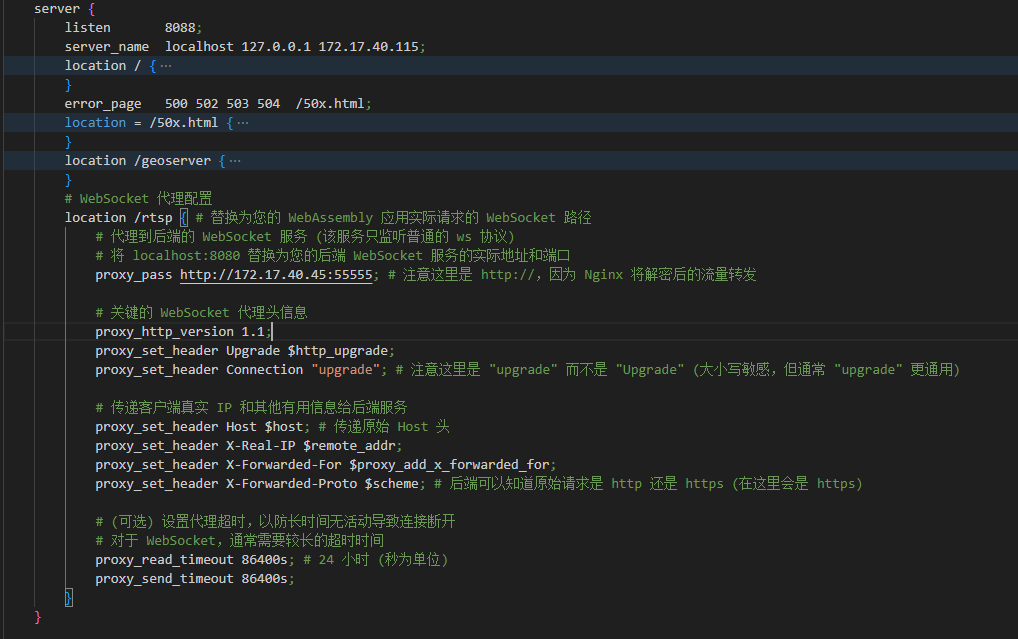
防止视频融合加载时的跨域问题,需要在nginx.conf中配置代理:
# WebSocket 代理配置
location /rtsp { # 替换为您的 WebAssembly 应用实际请求的 WebSocket 路径
    # 代理到后端的 WebSocket 服务 (该服务只监听普通的 ws 协议)
    # 将 localhost:8080 替换为您的后端 WebSocket 服务的实际地址和端口
    proxy_pass http://192.168.1.45.45:55555; # 注意这里是 http://,因为 Nginx 将解密后的流量转发

    # 关键的 WebSocket 代理头信息
    proxy_http_version 1.1;
    proxy_set_header Upgrade $http_upgrade;
    proxy_set_header Connection "upgrade"; # 注意这里是 "upgrade" 而不是 "Upgrade" (大小写敏感,但通常 "upgrade" 更通用)

    # 传递客户端真实 IP 和其他有用信息给后端服务
    proxy_set_header Host $host; # 传递原始 Host 头
    proxy_set_header X-Real-IP $remote_addr;
    proxy_set_header X-Forwarded-For $proxy_add_x_forwarded_for;
    proxy_set_header X-Forwarded-Proto $scheme; # 后端可以知道原始请求是 http 还是 https (在这里会是 https)

    # (可选) 设置代理超时,以防长时间无活动导致连接断开
    # 对于 WebSocket,通常需要较长的超时时间
    proxy_read_timeout 86400s; # 24 小时 (秒为单位)
    proxy_send_timeout 86400s;
}
视频融合创建
video = new CooWasm.VideoFusion({
    serverUrl: "https://xxx.xxx.xxx.xxx:xxxxx",//https
    //serverUrl: "ws://xxx.xxx.xxx.xxx:xxxxx",//http
    videoUrl: "rtsp://admin:xxxxx@xxx.xxx.xxx.xxx:xxx/h264/xxx/main/av_stream",
    playStatus: CooWasm.EnumVideoPlayStatus.PLAY,
    eye: new CooWasm.Vec3Obj(120.2193536, 30.2100447, 36.980),
    center: new CooWasm.Vec3Obj(120.2193452, 30.2100411, 36.543),
    up: new CooWasm.Vec3Obj(-0.097, 0.952, 0.290),
    fovy: 45.250,
    aspect: 1.787
}, state => {
    console.log("video load:" + state);
});
当创建成功后,可调用locate()方法,视点自动定位到最合适的观察位置来展示视频融合效果。
CooWasm开发者中心操作指南(视频融合)
1.选择功能模块: 在开发者中心左侧列表中,依次选择场景绘制→视频融合。
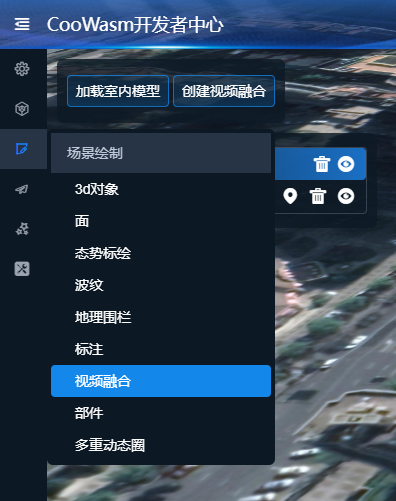
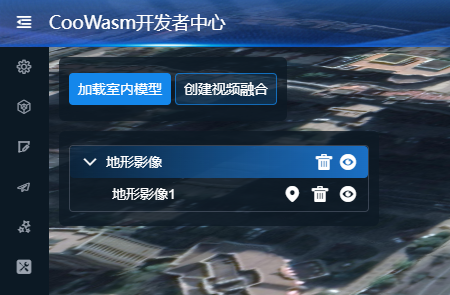
2.加载室内模型: 在查看视频融合前,请先加载室内模型,点击加载室内模型加载对应的模型。
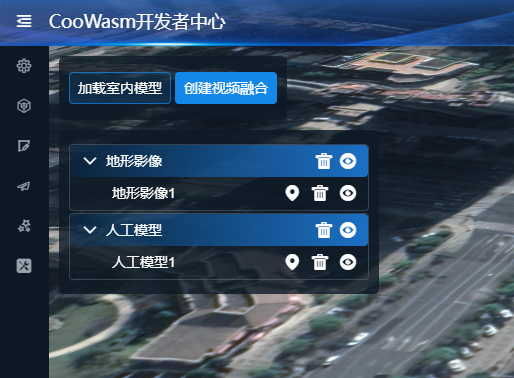
3.创建视频融合: 点击创建视频融合,加载对应的视频融合。
4.配置视频融合地址: 若默认的视频融合服务地址无法访问,系统将自动弹出「视频融合配置」窗口。请在窗口中输入可正常访问的视频融合地址,确认无误后点击「确定」按钮完成配置。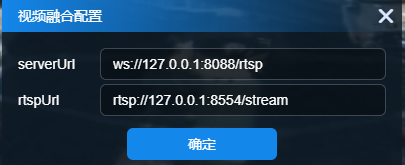
4.视频融合定位: 右侧属性面板点击定位按钮,定位视频融合。